 Grainform
From an image to living grain
Bring your image
Open Studio and choose Upload image. Drop a file on the canvas or paste an image to do the same.
Find its feel
In Grain, compare Fine, Raw and Halftone. Each preview comes from your source.
Make it yours
Move over the artwork to play. Choose Brush for lasting edits, or Motion to animate it.
Take it with you
Choose Export. Start with a free watermarked PNG, or choose a Pro format.
What can I start with?
Transparent PNGs and self-contained SVGs work well for logos. For photos, start with Original color and Fine grain. Text and built-in shapes are in Source.
Supported self-contained GLB and OBJ files create real 3D grain geometry. A photo in 3D creates image relief. If an import fails, your existing creation stays in place.
Same source. A different feel.
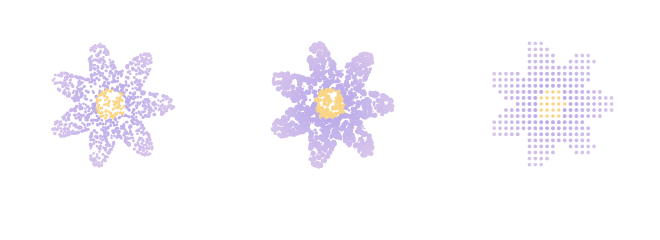
Fine
Small grains for delicate edges and recognizable detail.
Raw
Larger grains for a coarser, more tactile surface.
Halftone
Grain size responds to brightness for a dotted print feel.
Pick a look, then try Small, Medium or Large grain. Keep Original color or choose a color treatment.
Refine size, detail and background
More adjustments contains exact grain size, density, image detail, background removal and edge breakup.
Background removal is based on the source's border-connected flat color. It is not semantic subject detection. Transparent source artwork gives the most predictable cutout.
Edit where you see it
Choose a brush and drag on the artwork. The stamp controls brush size; named pressure choices control how strongly it acts.
- Move
- Push grains into a new shape.
- Paint
- Change the color of existing grains.
- Erase
- Remove grains from the result.
- More brushes
- Restore erased grains, preserve a region, add depth or refine detail.
Interact lets you play without making a permanent brush edit.
Undo, Redo and keyboard shortcuts
Undo and Redo step through every edit in the current Studio session, including source replacements and 3D rotation. Use Ctrl or Command + Z to undo, with Shift to redo. Reopening Studio restores your saved artwork but starts a new undo history.
From flat to dimensional
Switch between 2D and 3D to view the same creation. In 3D, drag the angle pad to change rotation and tilt. Front view resets the viewing angle. Image relief adds depth to a flat source; an imported 3D model already has spatial geometry.
Set it in motion
In Motion, choose Gather, Scatter or Orbit. Play the preview, scrub the timeline, and adjust duration or looping. PNG and SVG capture the current frame. WebM renders the authored animation.
Keep the creation you made
Without an account
Your draft is recovered locally in this browser. Return to Studio in the same browser to resume it. Local recovery depends on browser storage; clearing site data, private browsing or changing devices can remove access to that draft.
With an account
Sign in to keep private projects in your Workspace. Use Save and wait for Saved before leaving. Your scene, working image, material settings and edits are saved together. The original full-resolution source file stays local, so keep your own copy.
Before you leave Studio
Opening plans or signing in preserves your current creation for the return. If saving fails, retry while Studio is still open. Exporting a PNG or SVG creates a finished file, not an editable Grainform project backup.
A draft in browser storage is not a cloud backup. For important work, save to an account and keep copies of your original source and exported files.
Choose the file for the job
A still image, a moving piece or something people can touch.
Share an image
PNGImages and social artwork
Current frame with transparency. Free previews are watermarked and 1024 pixels wide; Pro is clean and 3840 pixels wide.
SVGScalable static artwork
Individual colored circles from the current frame. No animation or editable Studio controls. High grain counts can make large files.
Keep it interactive
ReactA React website
A self-contained JSX canvas component with pointer interaction. It exports the current frame, not the full authored timeline or Studio editor.
See the integration exampleHTMLA standalone page or embed
A self-contained interactive canvas page. Like React, it is a frame snapshot with pointer interaction.
See the embed exampleTake motion or depth further
WebMRendered animation
3840 × 2160, 24 fps, VP9 video with transparency. Requires a browser with supported 4K encoding, such as current Chrome or Edge. Compatibility varies by player.
GLBA 3D workflow
A static point cloud with positions, colors and a custom grain-radius attribute. It is not a solid mesh or an animated GLB; point size depends on the receiving viewer.
Access and unsupported formats
All formats other than the free PNG preview need Pro. Monthly and one-time Pro include the same supported exports. Purchase access is attached to the account used at checkout after server verification.
MP4, a dedicated Framer component and a public conversion API are not currently offered. Keep a WebM master and check the requirements of the site where you plan to publish it.
Put your artwork on a website
Choose the example that matches your site. Export the file from Studio first.
Use the React component
Export React component and put the downloaded Grainform.jsx beside your page component. Import its default export. The component includes the grain data and canvas interaction; it does not require a Grainform package or API key.
import Grainform from "./Grainform.jsx";

export default function Artwork() {
  return (
    <div role="img" aria-label="Interactive grain flower"
      style={{ maxWidth: 720 }}>
      <Grainform />
    </div>
  );
}
In a React framework with server components, put this wrapper in a client component using "use client"; at the top. The generated component uses canvas and React hooks.
Embed the HTML file
Export HTML embed and host grainform.html on your own site. It can run as a standalone page. To embed it inside another page, use an iframe and choose an aspect ratio that matches the artwork.
<iframe
  src="/grainform.html"
  title="Interactive grain artwork"
  loading="lazy"
  sandbox="allow-scripts"
  style="display:block;width:100%;aspect-ratio:1;border:0"
></iframe>
Upload the exported file to your hosting provider first. This example points to your own domain, not a public Grainform project link. If your hosting uses a strict Content Security Policy, it must permit the generated inline script through an appropriate script hash.
Use a static image
Use the PNG or SVG in a normal image element, with meaningful alternative text. SVG scales cleanly, but thousands of circles can be heavier than a PNG. Test the actual file on a phone before making it a large background.
React and HTML respond to the pointer using their exported frame. They do not contain the full authored animation, material editor or automatic project updates. Export again when you change the creation.